Sending RCS through the platform
To be able to send RCS, you need your own registered RCS Agent, with your company or service name. (Contact us for more information or to request an RCS agent)
Sending spam, fraud, or any other false message may result in your agent being blocked by Google itself.
To send an RCS campaign, go to the New Dispatch menu. Select a route of type RCS:

When you choose an RCS route, the interactive RCS editor will be shown immediately.
RCS Editor
The visual RCS editor allows you to create your RCS messages interactively. On the sending screen, you can choose a predefined template or start a new message from scratch.
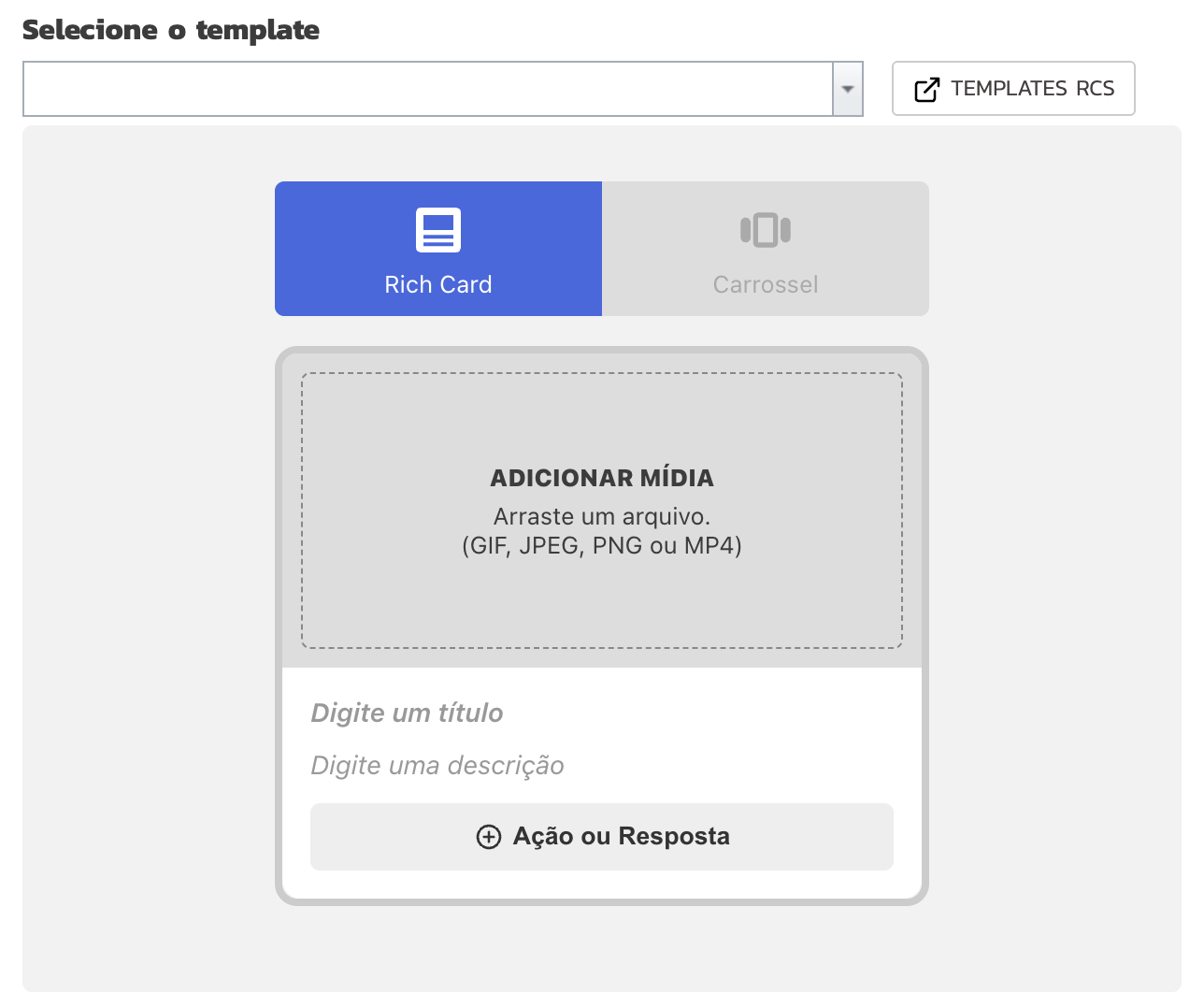
The resources available in the RCS editor may vary depending on the selected route.
Actions and Responses
They are shown right below the main message, providing interactive actions that help the user make a choice.
Fallback URL
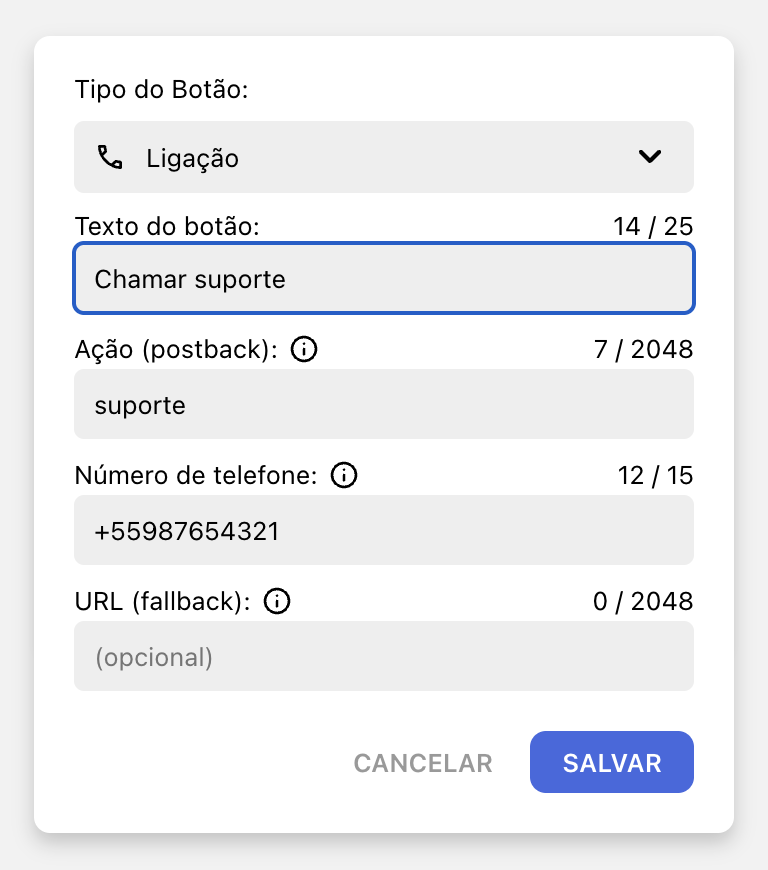
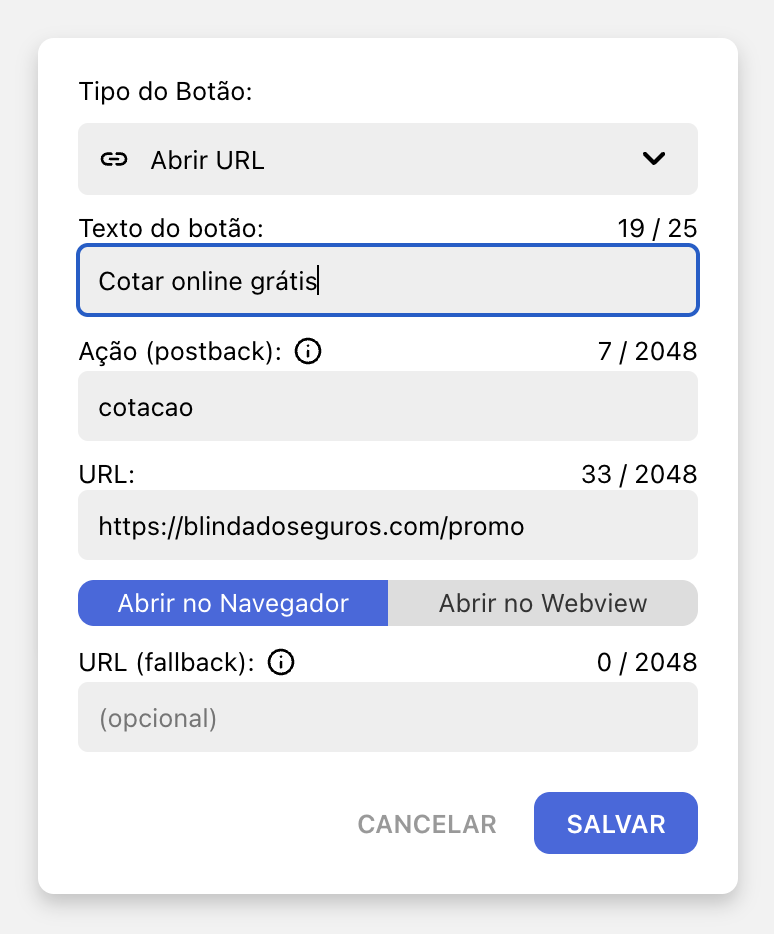
Some actions have a URL (fallback) field. It is used on devices that do not support the resource. In this case, the provided URL will be opened in the device's default browser.
Response
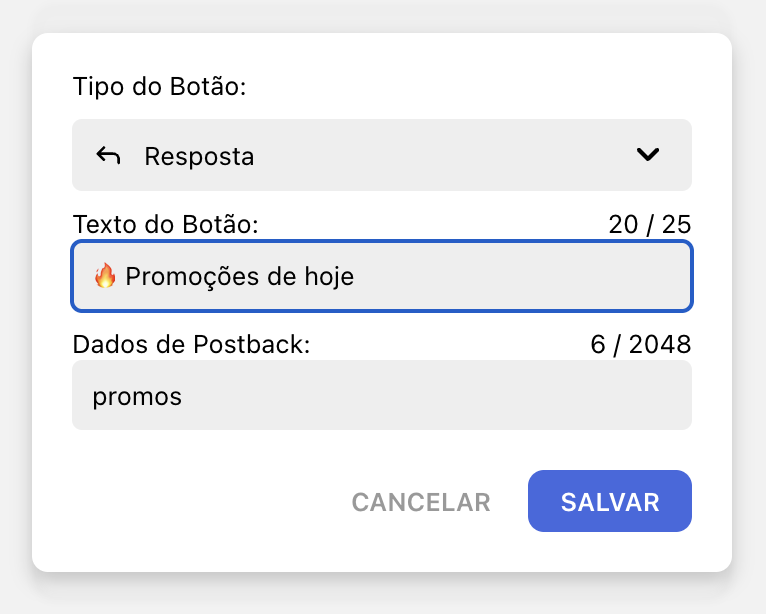
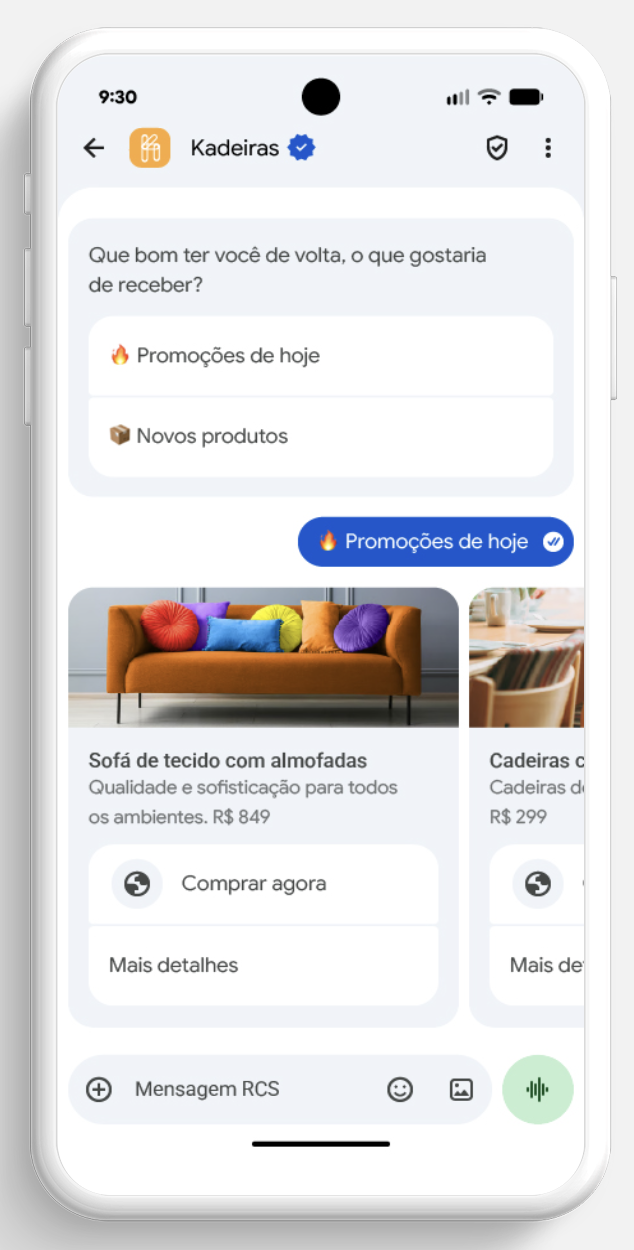
Standard button for predefined quick replies to help the user choose one or more options. It is shown directly below the RCS message.
| → |
|
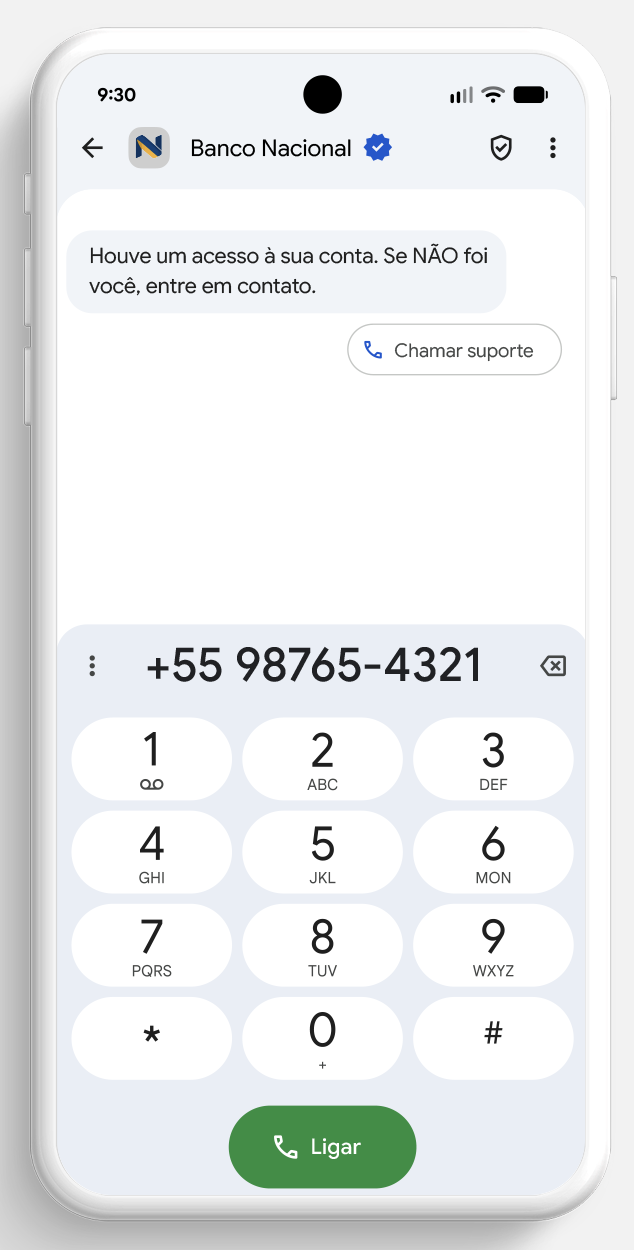
Call
Adds a button so the user can call the registered phone number directly.
| → |
|
Send Location
Sends the defined location so the customer can view it directly on the map.
| → |
|
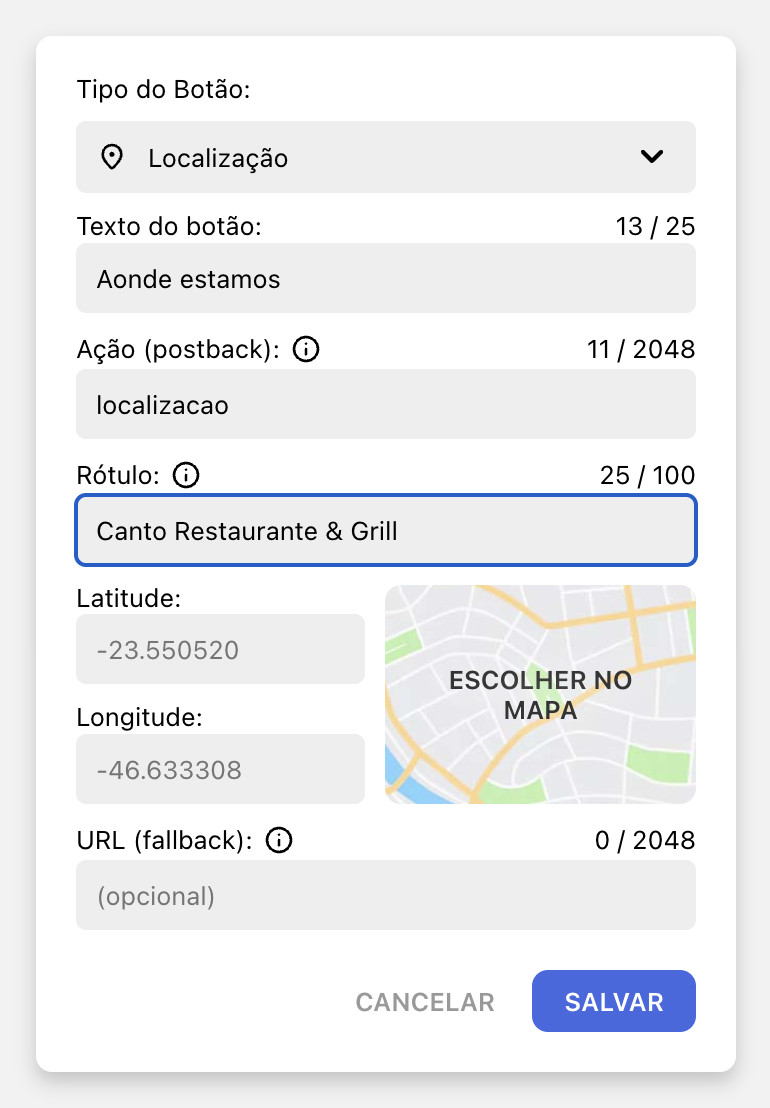
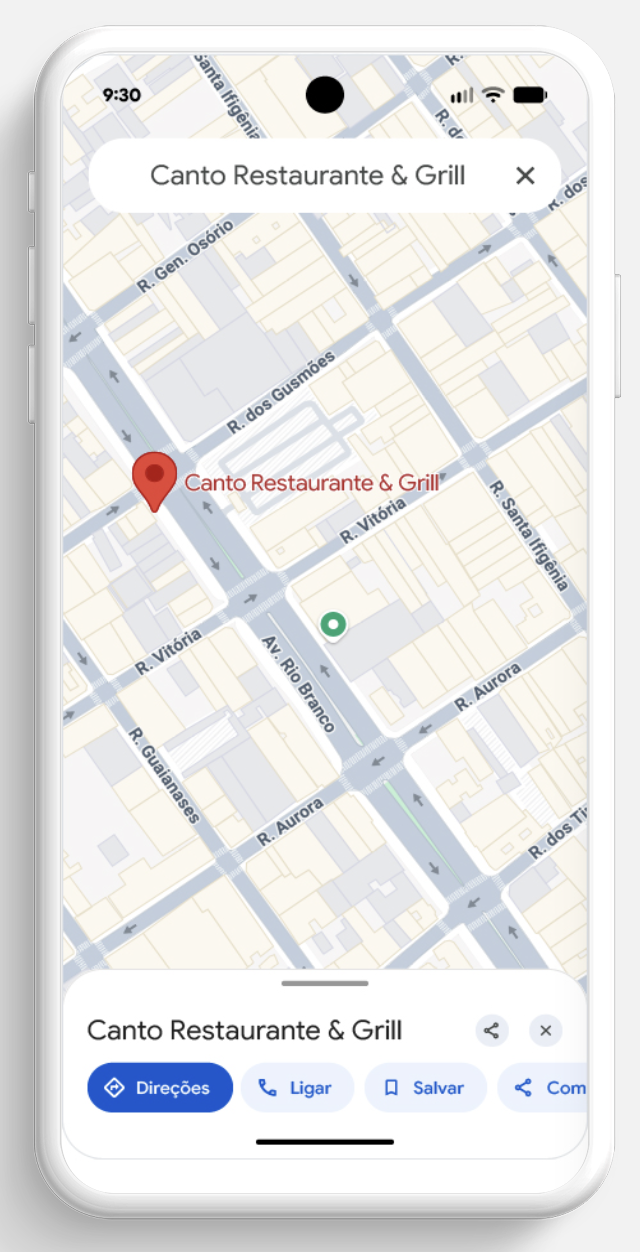
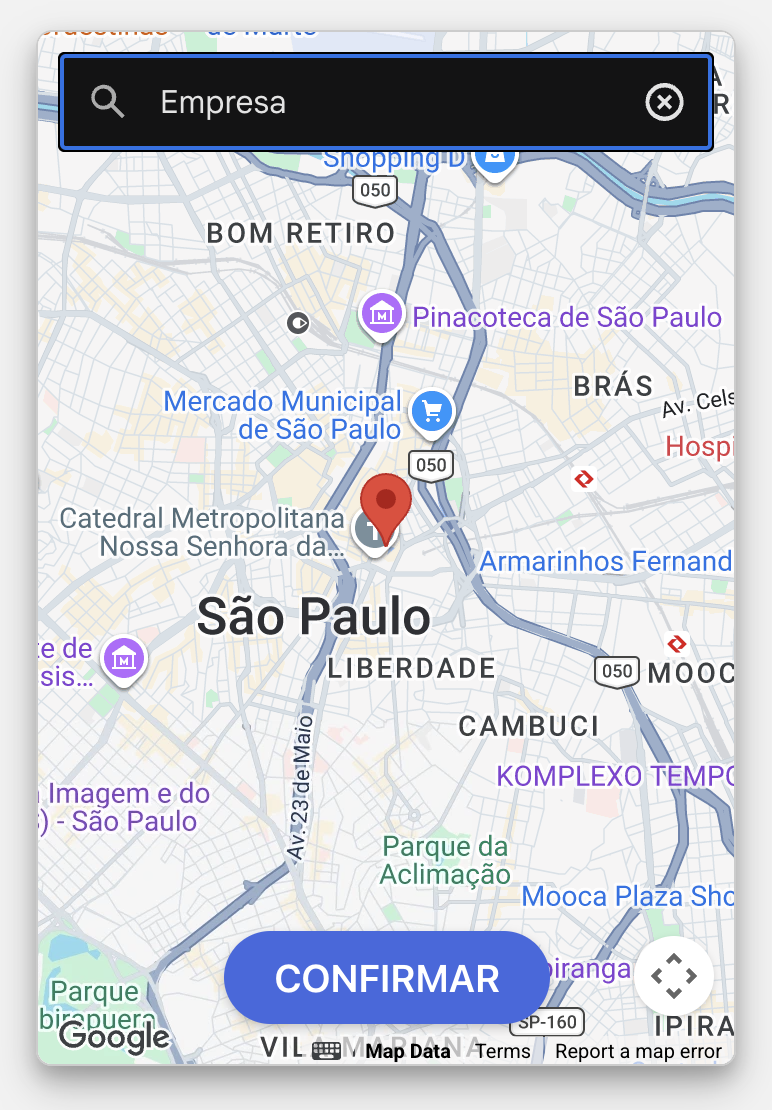
Define your location by searching for the address directly on the map. Drag the location indicator (in red) to precisely adjust the desired place.
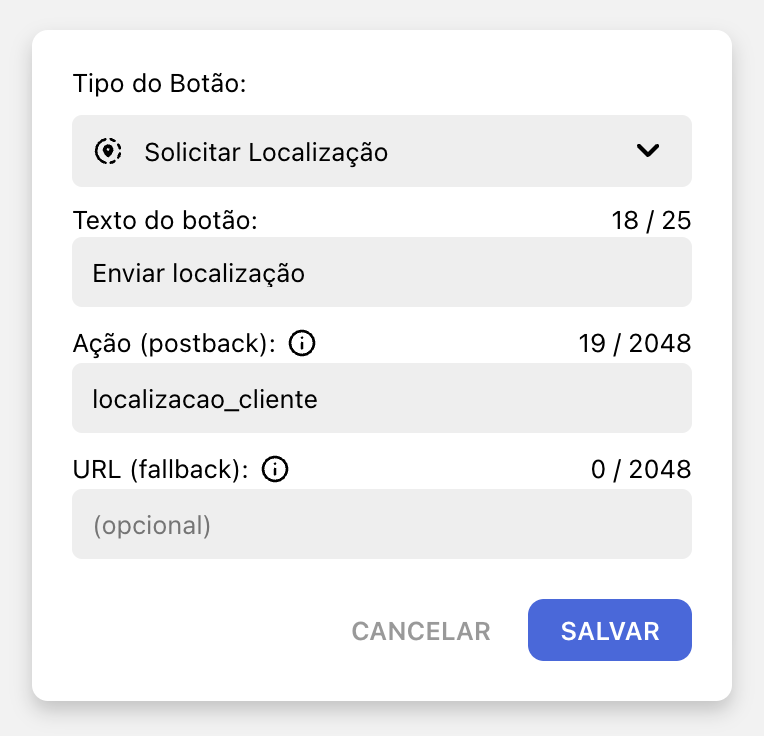
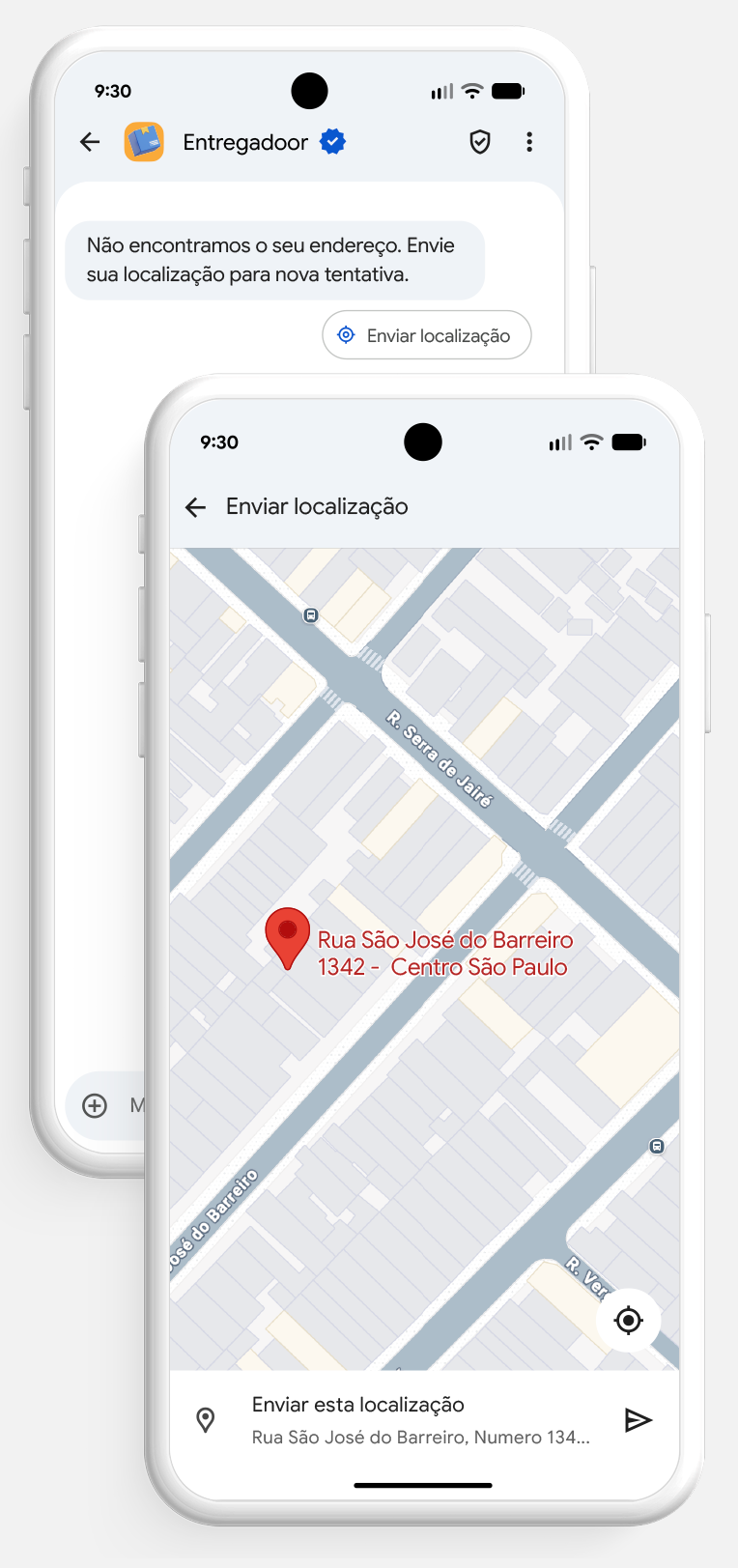
Request Location
Requests that the user send their location. The coordinates (latitude and longitude) will be received as a response.
| → |
|
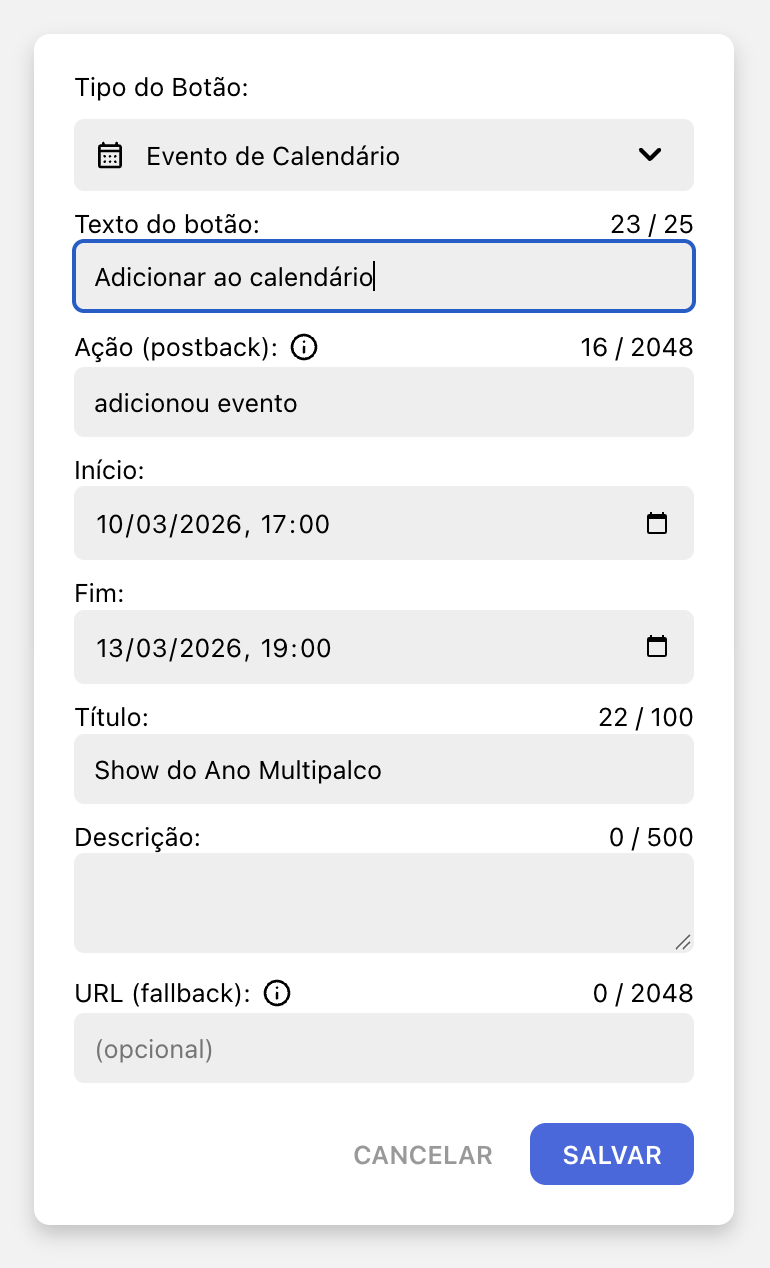
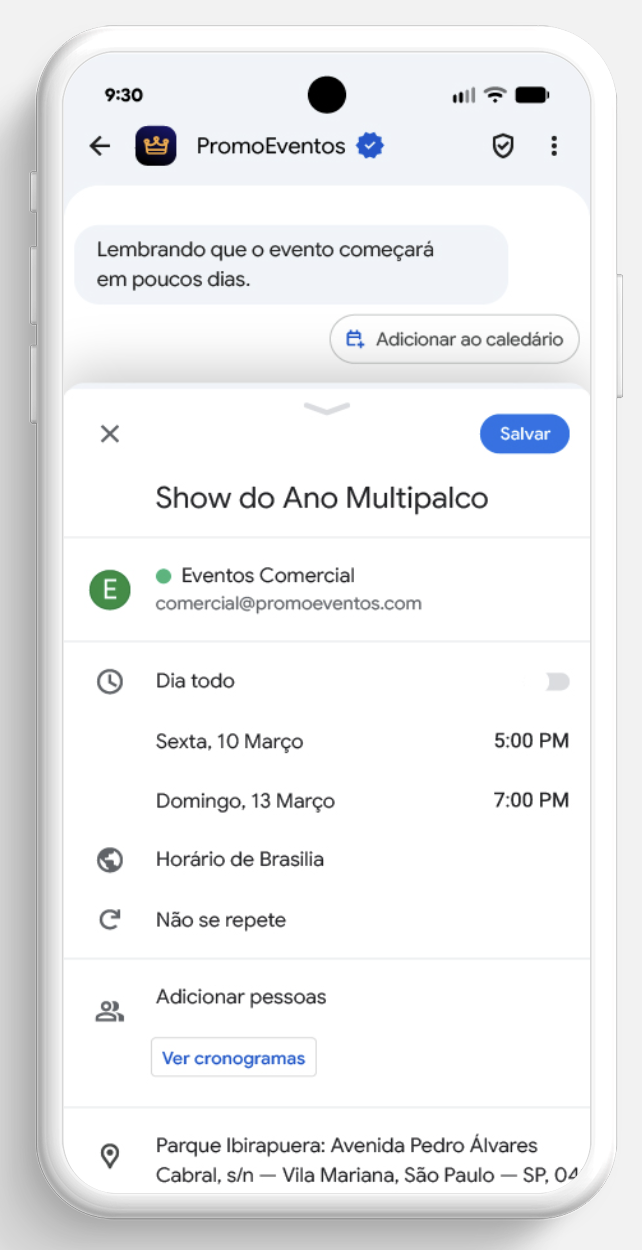
Calendar Event
Allows the RCS recipient to save a pre-registered event to their calendar.
| → |
|
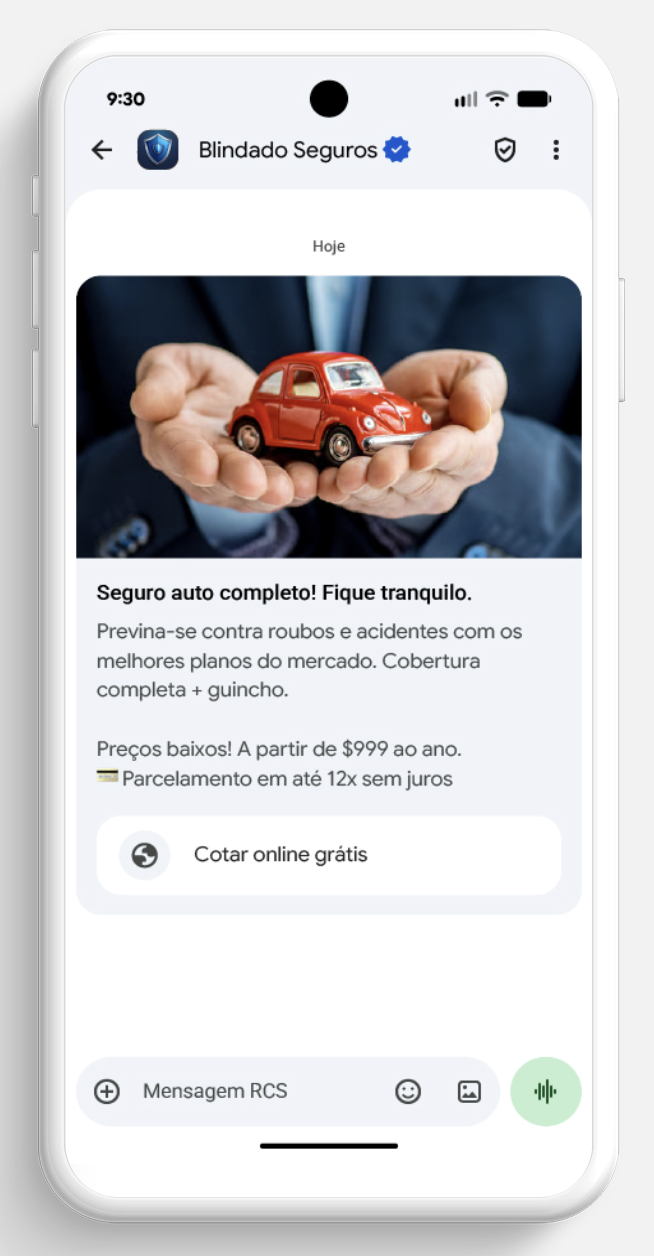
Open URL
Opens a URL in the browser or in the WebView (limited to the resources available on the device).
| → |
|
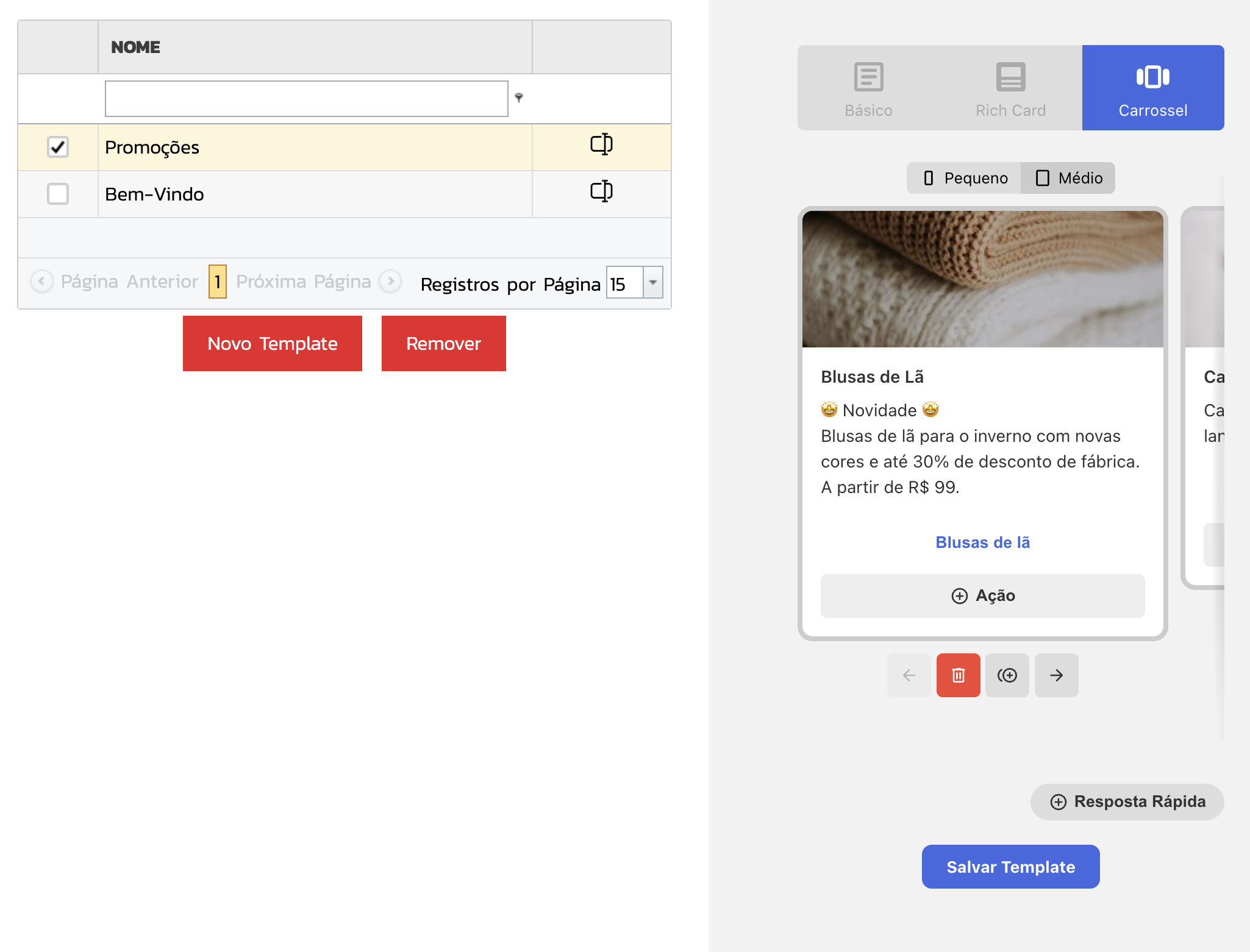
Templates
The template registration screen allows you to include predefined templates to facilitate sending repeated messages. Go to New Dispatch > Choose an RCS route > Templates:
Inbox / Responses
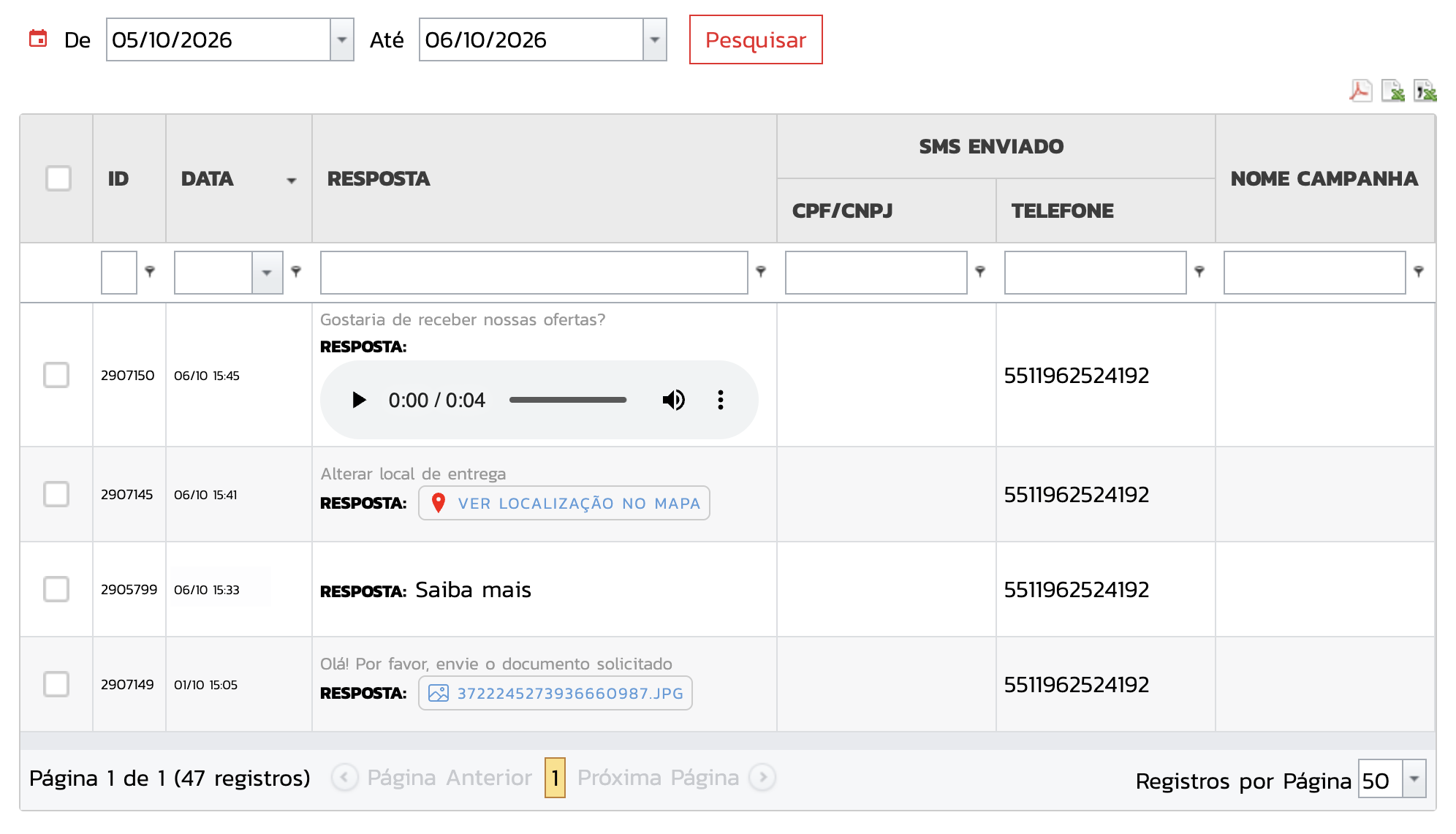
Messages received as text, image, file, contact or audio will be available in the Inbox.